EnterprisePricing

Client Portal
February 6, 2026
Simplifying SMB Processes
How Role-Based Access Control (RBAC) Secures Your Client Portal


A consulting firm director set up a client portal last quarter. She spent two afternoons configuring it, tested the login, and sent the link to her first client. Three days later, that client emailed her. Not to submit a request. To let her know they could see another company's project files.
Nothing malicious happened. No one hacked anything. The portal was just not configured correctly. And that one moment cost her more trust than six months of good work had built.
This is not a rare story. It is the most common way client portals fail: not through a cyberattack, but through a misconfiguration nobody noticed until a client found it. The fix is Role-Based Access Control (RBAC), a straightforward way to decide who sees what and make sure nothing leaks through the gaps.
TL;DR
- RBAC means each person who logs into your portal sees only what their role allows. Clients see their work. Your team sees what they need. Admins see everything.
- Most client portal security failures at small firms are not cyberattacks. They are misconfigurations: wrong permissions, shared logins, internal fields left visible to clients.
- A professional services firm needs four roles at minimum: client (external), team member, account lead, and admin.
- The five most common misconfigurations are covered in this article, with a plain-language fix for each one.
- According to Verizon's 2024 Data Breach Investigations Report, 43% of cyberattacks target small businesses. Weak access control is one of the most common entry points.
- Testing permissions by logging in as a dummy client account before go-live catches most problems in under 20 minutes.
What does Role-Based Access Control (RBAC) actually mean?
Role-Based Access Control sounds like an IT concept. In practice it is just the answer to one question: who needs to see what to do their job, and nothing more?
You define a set of roles (client, team member, admin) and assign permissions to each role once. Every person who gets that role automatically gets those permissions. If you change the role, every person in it is updated. You never have to manage access person by person.
A useful analogy: it works like a building's key card system. The junior designer's card opens their floor and the lobby. The finance director's card opens the finance floor. Nobody gets a master key unless they actually need one. The building does not ask you to hand out keys individually every time someone new joins. The role handles it.
Applied to a client portal, RBAC means each client logs in and sees a version of the portal that shows only their work, their documents, their requests. They cannot browse to another client's files even if they try. Your internal team sees what they need across all clients. Your admin can configure the system. Nobody stumbles into something they should not.
What roles does a professional services firm actually need?
Most RBAC guides talk about roles in the abstract. Here is what a 10 to 40 person agency, consultancy, or advisory firm actually needs in a client portal, and what each role should and should not see.
A few things worth noting about this table. First, clients should never see other clients' records. This sounds obvious but it is the most common misconfiguration, because the default in many portal tools is to show all records unless you explicitly add a filter. The filter does not apply itself.
Second, internal notes and margin data should be invisible to clients regardless of role. These are fields your team uses for internal context. They are not for your clients and they should not appear in any client-facing view, even accidentally.
Third, system settings should only be accessible to one or two named admins. The more people who can change permissions, the more likely a well-meaning change creates an unintended gap.
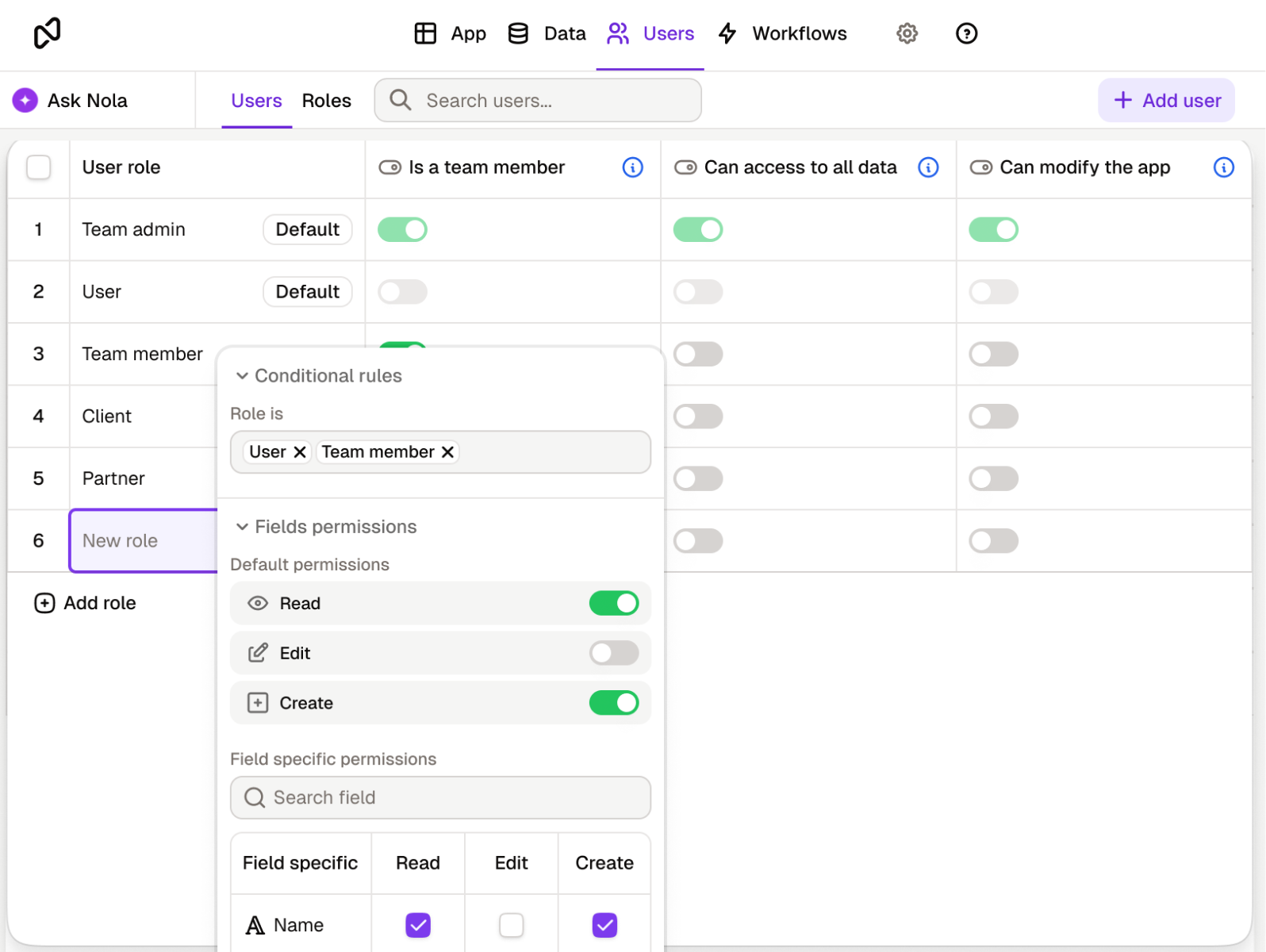
What are the most common permission misconfigurations, and how do you fix them?
Most client portal security problems at small firms are not the result of a sophisticated attack. They are the result of a setup that nobody fully tested. Here are the five mistakes that come up most often, what each one leads to, and what to do about it.
The stakes are real. According to Verizon's 2024 Data Breach Investigations Report, 43% of cyberattacks target small businesses, often because they hold valuable client data but have weaker access controls than larger organizations. And per IBM's 2024 Cost of a Data Breach Report, a breach costs small businesses an average of $149,000. A misconfigured permissions setting is not a minor admin error. It is a liability.
How do you test your permissions before clients find the gaps?
The most reliable way to catch permission problems is to experience the portal the way a client does, before any real client does.
Before you invite anyone, create one dummy account for each role you have defined. Log in as the client account. Try to navigate to another client's project. Try to open a record you should not have access to. Try to edit a field that should be read-only. Then log in as the team member account and do the same. Finally check the admin account has the access it needs and nothing it does not.
This takes around 20 minutes and it catches the majority of misconfiguration errors before they become client-facing problems. The most common finding: the filter was set on the wrong field, or a page was not restricted to the right role. Both are easy to fix in five minutes. Much harder to fix after a client has already seen something they should not have.
One more thing to check: what happens when a user's role changes. If a team member becomes an account lead, do their permissions update automatically? If a client contact leaves the firm you are working with, is there a clear process to deactivate their login? Access reviews are not a one-time setup task. A 30-minute quarterly check is enough to keep things clean.
What does a secure client portal look like once permissions are set up correctly?
Each client logs in and sees a portal that feels like it was built only for them. Their projects. Their requests. Their documents. Nothing from another client's account is visible, even if they look for it.
Your internal team can see everything they need across all active clients without any friction. The account lead can check all projects. The junior team member sees only what is relevant to their work. The admin can adjust settings without anyone else being able to interfere.
Nobody has more access than they need. And if a client or prospect ever asks how you handle their data, you can answer clearly: access is role-based, each client sees only their own records, and access is reviewed quarterly. That is not a small thing. For a firm selling expertise and trust, it is part of the product.
Getting to this state is not a complex technical project. It is a configuration task that any operations-minded person can complete in an afternoon. The complexity is in knowing what to configure, not in doing it. That is what this article is for.
See why agencies choose Noloco to run internal operations and client collaboration together—in one secure, branded portal:
What should you check before inviting your first client into the portal?
Work through this list before you send any client a login link.
- At least three roles defined before anyone is invited: client, internal team, admin
- Record-level filters active on every client-facing view, not just page-level restrictions
- No internal fields (notes, margin, team-only labels) visible in any client view
- Client-facing views built and audited separately from internal views
- Individual logins per user, no shared credentials anywhere in the system
- A dummy account exists for each role and has been tested end to end
- Former client contacts and ex-team members removed or deactivated
- A calendar reminder set for a quarterly access review (30 minutes is enough)
- At least one named admin who owns the permissions configuration
Final thoughts
A client who trusts that their data is handled carefully is a client who stays. And a client who accidentally sees another firm's files is a client who quietly starts looking elsewhere.
Role-based access control is not a feature you use once and forget. It is the infrastructure that makes everything else in your client portal worth building. Get the roles right, test them before go-live, and review them every quarter. That is the whole system.
If you are building or upgrading a client portal and want to see how permissions, record-level filtering, and role configuration work in practice, Noloco lets you configure all of this without writing a line of code. See the Noloco client portal solution page for a full walkthrough.
Frequently asked questions
What is the difference between role-based permissions and record-level permissions?
Role-based permissions control what pages or sections a user can access. Record-level permissions control which specific records within those pages a user can see. A client might have access to the "My Projects" page (role-level) but only see their own projects on that page (record-level). You need both. Role-level alone is not enough to prevent one client from seeing another client's data.
How many roles does a small firm actually need?
Most firms with 10 to 40 people need four: a client role for external contacts, a team member role for staff without management responsibilities, an account lead or project manager role for people who need visibility across all clients, and an admin role for whoever manages the system. You can add more roles as your firm grows, but starting with four covers the majority of real-world scenarios.
Can a client accidentally see another client's data even with role-based access set up?
Yes, if record-level filters are not configured correctly. Role-based access prevents a client from seeing pages they should not access. But if the records on a permitted page are not filtered to show only that client's data, they can see everything in the system. This is the most common misconfiguration in client portals and the most important one to test before go-live.
How often should I review who has access to the portal?
A quarterly review is enough for most firms. The goal is to check that everyone's role still matches their actual relationship with the firm: team members who have changed roles, client contacts who have left the companies you work with, and any logins that have not been used in the last 90 days. It takes about 30 minutes and prevents the most common long-term permission problems.
Do I need a separate login for each person at a client's company?
Yes. Shared logins create two problems. First, you cannot remove one person's access without blocking everyone else using that login. Second, you lose any record of who did what inside the portal, which matters if a dispute ever comes up. Individual logins per user is the baseline for any portal you expect to use seriously.
What should a client see when they log into a well-configured portal?
Only their own work. Their projects, their requests, their documents, their status updates. Nothing from other client accounts. No internal fields like notes, margin, or team-only labels. No system configuration pages. The portal should feel like it was built specifically for them, because in practice, their view of it was.
Related resources
What is a client portal? A primer on what client portals are, why professional services firms use them, and what to look for when choosing one.
How to run client approvals without the email back-and-forth. A step-by-step walkthrough of setting up request forms, status stages, and document sharing in a client portal. (Update slug once published.)
Noloco client portal solution page. See how Noloco lets professional services firms build branded, secure client portals without code.
Author


Our recent posts
Explore all blog posts



Your most common
questions—answered!
Who is Noloco best suited to?
+
-
Noloco is perfect for small to medium-sized service businesses like consultancies, agencies, advisory firms, as well as engineering and industrial services such as energy, construction, or any other operations-focused fields.
Do I need tech experience to use the platform?
+
-
Not at all! Noloco is designed especially for non-tech teams. Simply build your custom system using a drag-and-drop interface. No developers needed!
Is my data secure?
+
-
Absolutely! Security is very important to us. Our access control features let you limit who can see certain data, so only the right people can access sensitive information
Do you offer customer support?
+
-
Yes! We provide customer support through various channels—like chat, email, and help articles—to assist you in any way we can.
My business is growing fast—can Noloco keep up?
+
-
Definitely! Noloco makes it easy to tweak your system as your business grows, adapting to your changing workflows and needs.
Is there any training or support available to help my team get up to speed?
+
-
Yes! We offer tutorials, guides, and AI assistance to help you and your team learn how to use Noloco quickly.
Can I make changes to my app after it’s been created?
+
-
Of course! You can adjust your app whenever needed. Add new features, redesign the layout, or make any other changes you need—you’re in full control.
Ready to boost
your business?
Build your custom tool with Noloco