EnterprisePricing


A client emails on Friday afternoon: "Can you resend the signed scope? And which version of the site drawings is the latest?" Someone on your team digs through their inbox, finds two attachments with the same name, and sends the wrong one.
Earlier this year we launched our Agency OS for professional services teams that run client work through projects and tasks. Lots of teams adopted it and made it their own. But one piece of feedback kept coming back: the work still revolves around files, and people wanted a proper place for them at the project level, and sometimes at the task level.
We could always support files in Noloco, but it never felt like the file browsers people already know, like Google Drive, Dropbox, or Finder on their laptop. With Canvas, that has changed. In this guide I'll show you how I built a file browser inside each project in a few minutes, shared safely with both our team and our clients.
Ready? Let's get started!
TL;DR
- A client file management system gives every project its own folders and files, which your team and that project's client can both open, upload to, and download from.
- Behind it you need two simple tables: one for files (who uploaded what, when, to which project and folder) and one for folders (including folders inside folders).
- In Noloco, you describe this to Nola, the AI builder, and it creates the tables, the permissions, and a drag-and-drop file browser in a new Files tab on each project.
- Permissions are the part that matters most: a client should only ever see files from their own projects.
- Below you'll find the exact prompt and spec structure I used, so you can copy it for your own projects.
Why do client files end up scattered across email, drives, and chat?
Because files arrive from everywhere. A client sends a contract by email, a site engineer drops photos in a chat thread, and someone saves the final report to a shared drive folder that only half the team knows about. Nobody planned it that way. It happens one attachment at a time.
The cost is real time. In Ricoh Europe's research of 6,000 office workers across six European countries, 32% said they spend time searching for files across multiple systems or shared drives (Ricoh Europe via IT Brief, 2026). Atlassian's survey of 12,000 knowledge workers found that teams lose 25% of their time just searching for answers (Atlassian State of Teams, 2025).
For a firm working with clients, there's a second cost: the file lives in one place and the project lives in another. Your team can see the project status in one tool, but has to open a separate drive to find the drawings it refers to. Your client can't see either, so they email you instead.
What should a file management system for clients and your team include?
Before you build anything, write down what "good" looks like for your firm. For most teams I speak to, it comes down to six things:
- Files live inside the project. Open the project, click Files, and everything for that job is there.
- Folders, including folders inside folders. For example "Drawings", then "Revision B" inside it.
- Drag and drop. If it's harder than dropping a file into Dropbox, people will go back to email.
- Preview without downloading. Click a PDF or image and see it straight away.
- Who uploaded it, and when. So "which version is the latest?" has a clear answer.
- The right people see the right files. Your team sees every project they work on. Each client sees only their own projects. You can read more about this in our guide to client portal permissions.
Here's how the usual ways of sharing client files stack up against that list.
Shared drives are good at storing files. Where they struggle is everything around the file: which project it belongs to, which client should see it, and keeping those sharing settings right as people join and leave projects.
How do you set up the data behind a file managemnt system?
Noloco already supports file upload fields on any record. For a real file browser, though, a file needs to be its own record, so it can have a name, an owner, a date, and a place in a folder. So the setup is your existing Projects table plus two new tables:
- Project files: one record per file, linked to a project and, optionally, a folder.
- Folders: one record per folder, linked to a project. A folder can have a parent folder, which is how you get folders inside folders.
These are the fields Nola created for me:
The Client field is worth calling out. I didn't ask for it, but Nola added it as a lookup through the project, so every file knows which client it belongs to. That one field is what makes client permissions simple later.
How do you build the file management system with Nola and Canvas?
The whole build is two pastes and one answer. Here's how I did it.
1. Write a short prompt
Open Nola in your app and say what you want in one or two sentences. Mine was close to this: I want to add file management to projects, nested folders and files with a file-brwoser tab on the Project record. I've attached a full spec covering the data model and the Canvas component. Please follow it closely and ask me if anything's unclear.
2. Paste a spec with the data and what you want it to look like
The spec covers two things: the data model and how the file browser should look and behave. Here's an example structure you can copy and adapt:
- Data model. Keep the existing Projects table. Add a Project files table with: Title, File, Project (link), Folder (link, optional), Uploaded by (set automatically), Uploaded at (set automatically). Add a Folders table with: Name, Project (link), Created by, Parent folder (link to Folders, optional).
- File browser (Canvas component). Show it in a new Files tab on the project record. It should look like a normal file browser, with folders and files. Users can create folders and drag files into a folder or into the main area. Every upload is linked to the project being viewed and to the person who uploaded it. Clicking a file shows a preview, a download button, who uploaded it, and when.
You don't need to know how to code to write this. If you can describe how your team files things today, you can write the spec.
3. Answer Nola's questions
Nola makes a plan, creates the tables and fields, and builds the Canvas component. If something in the brief is unclear, it asks. In my case it asked one question I hadn't covered: who should be able to see and use the new Files tab? More on that in the next section.
4. Try it on a real project
A few minutes later, each project had a Files tab that looks and feels like the rest of the app. To test it, I created a folder called "Signed contracts", dragged a file into it, and dropped another file into the main area. Clicking a file showed a preview, a download option, and who uploaded it and when.
Learn how to build a file management system with Noloco in minutes, including folders, file uploads, and permissions for your team and clients. Hit play 👀
Who should see which files: your team, your clients, or both?
This is the question Nola asked me, and it's the one most worth thinking about before you build. Nola suggested internal team only as the safe default. I chose team and clients, because we want clients to be able to view, download, and upload files on their own projects.
What impressed me most was what Nola did next without being asked. It looked at the rest of the app, saw that we already had a client role, a user role, and a manager role, and set up permissions on both new tables for each of them. Every file and folder came with the right access from the start, so a client logging in only sees files from their own projects.
Two practical tips from setting this up:
- Start with the simplest rule that's true. "Clients see everything on their own projects" is easy to explain to clients and to your team.
- Add team-only files later if you need them. A single yes/no field on the file, like "Team only", is enough to hide internal notes or draft versions from clients. You can ask Nola to add it when the need comes up.
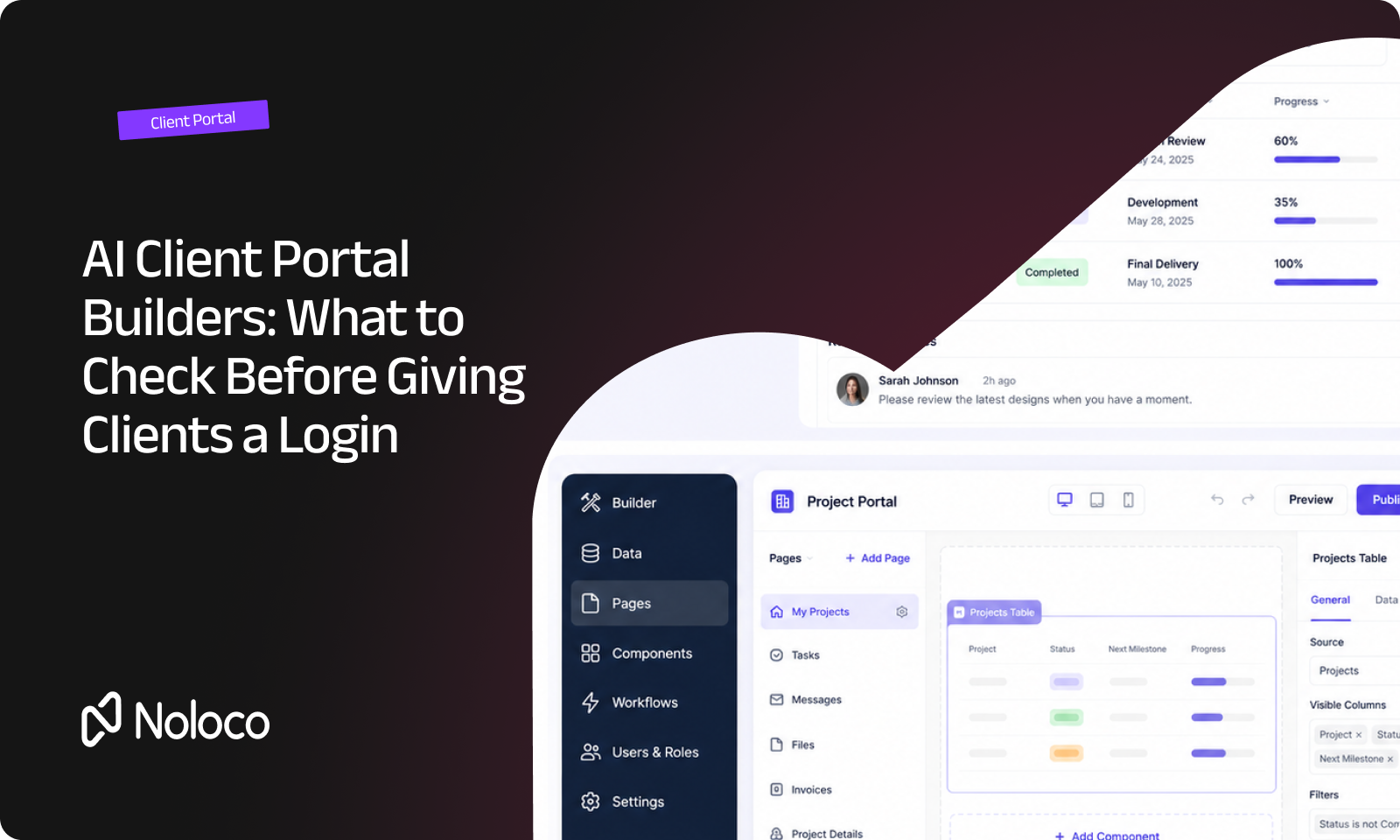
If clients will log in to more than just files, our guide to client portals covers what else they usually need to see.
What does this look like in a real firm?
Take a 40-person engineering consultancy running site surveys for property developers. Each survey is a project with tasks for the site visit, the drawings, and the final report.
- The client uploads the site plans and access instructions into a "Client documents" folder before the visit.
- The field engineer uploads site photos from the visit into "Site photos".
- The design team adds drawings into "Drawings", with one folder per revision.
- The project manager uploads the final report, and the client downloads it from the same Files tab.
Nobody emails attachments, and nobody asks which version is the latest, because every file shows who uploaded it and when. An accounting firm could use the same setup for year-end: a folder per tax year, the client uploads bank statements and receipts, and the team uploads the finished accounts for sign-off.
If your team still runs client work across email, drives, and spreadsheets, our guide on how to run client delivery shows how files fit alongside tasks, approvals, and updates.
When should you keep using Google Drive or Dropbox instead?
Not every file needs to live in a project. If a file is only used inside your team, isn't tied to one client project, and nobody needs to know who uploaded it, a shared drive is fine. Company policies, templates, and brand guidelines are good examples. Our guide to document management software for small businesses covers that internal side.
A project file browser makes sense when the file belongs to a specific client job, when clients need to upload or download it, and when you need a record of who added what. That covers most of the files professional services and field teams handle every week.
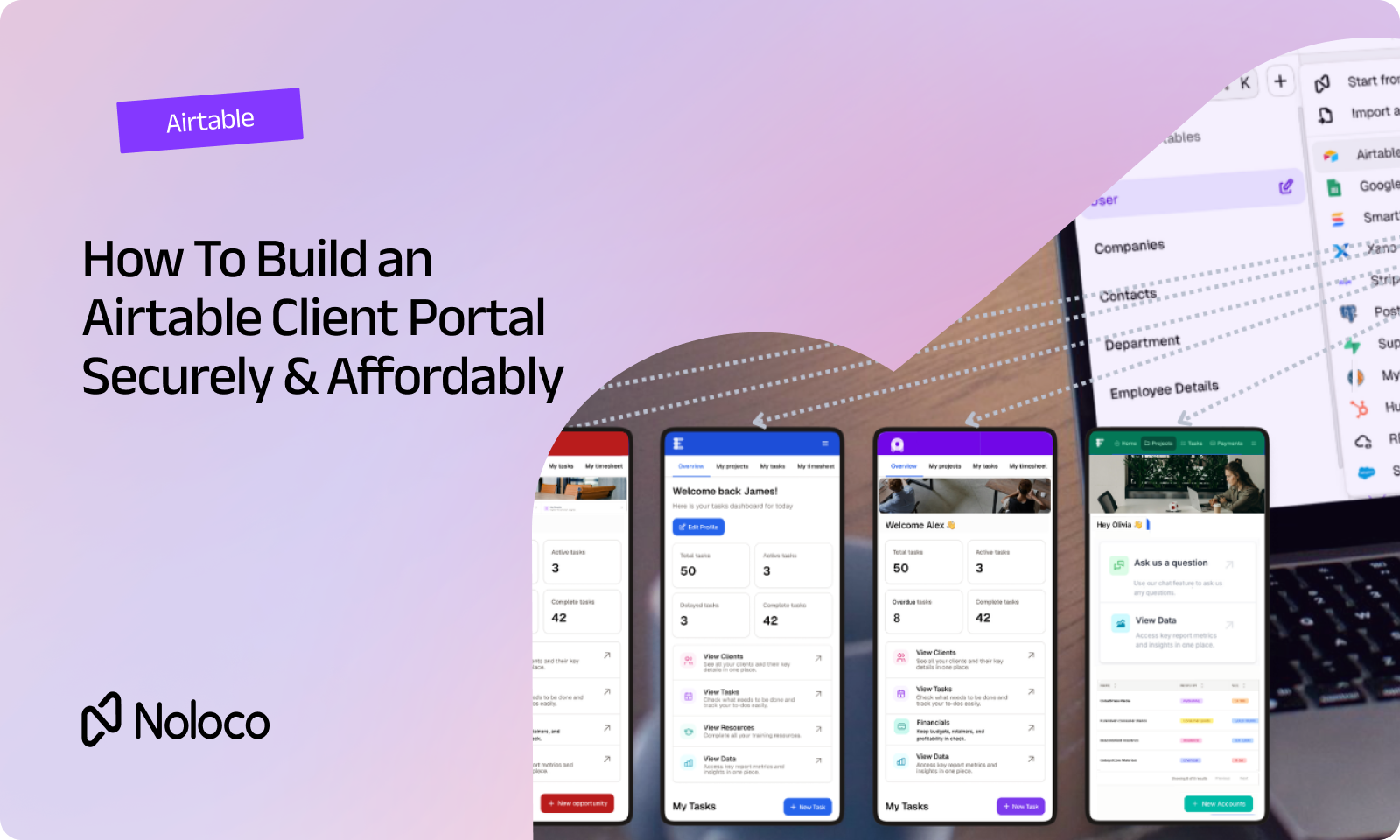
If your projects already live in Airtable, you don't have to move them to get started. You can keep Airtable as your data and build on top of it with Noloco, adding client logins and permissions that Airtable alone makes hard. Our guide to building an Airtable client portal securely walks through it.
Final thoughts
Files are where most client work actually happens: contracts, drawings, reports, photos, and statements. If those files live in inboxes and loose shared folders, your team spends its time finding them instead of using them.
A file browser inside each project fixes the basics. Files sit next to the work they belong to, clients can upload and download without emailing you, and everyone can see who added what and when. With Canvas, you describe it once and Nola builds it inside your own app, with your roles and permissions already in place.
Want a Files tab on your own projects, shared safely with your clients? Get started now!
FAQ
What is a client file management system?
It's a shared place where a business and its clients store, find, and exchange files for each project. Each file is linked to a project, organized into folders, and only visible to the people who should see it.
How do I organize client files by project?
Give every project its own set of folders, and use the same folder names across projects, like "Contracts", "Client documents", and "Deliverables". Record who uploaded each file and when, so the latest version is always clear.
Is it safe to let clients upload files to a shared system?
Yes, as long as access is set by role and by project. Each client should only be able to see and upload files on their own projects, and your team should be able to mark internal files as hidden from clients.
What's the difference between a client portal and a shared drive?
A shared drive stores files and lets you share folders by link or invite. A client portal gives each client a login where files sit next to their projects, tasks, and updates, with access controlled by their role rather than by individual sharing settings.
Can I keep email attachments out of client work completely?
Not completely, but you can make email the exception. If clients have one place to upload and download project files, most attachments move there, and the ones that still arrive by email can be uploaded to the right project folder.
Related resources
Author


Our recent posts
Explore all blog posts

Your most common
questions—answered!
Who is Noloco best suited to?
+
-
Noloco is perfect for small to medium-sized service businesses like consultancies, agencies, advisory firms, as well as engineering and industrial services such as energy, construction, or any other operations-focused fields.
Do I need tech experience to use the platform?
+
-
Not at all! Noloco is designed especially for non-tech teams. Simply build your custom system using a drag-and-drop interface. No developers needed!
Is my data secure?
+
-
Absolutely! Security is very important to us. Our access control features let you limit who can see certain data, so only the right people can access sensitive information
Do you offer customer support?
+
-
Yes! We provide customer support through various channels—like chat, email, and help articles—to assist you in any way we can.
My business is growing fast—can Noloco keep up?
+
-
Definitely! Noloco makes it easy to tweak your system as your business grows, adapting to your changing workflows and needs.
Is there any training or support available to help my team get up to speed?
+
-
Yes! We offer tutorials, guides, and AI assistance to help you and your team learn how to use Noloco quickly.
Can I make changes to my app after it’s been created?
+
-
Of course! You can adjust your app whenever needed. Add new features, redesign the layout, or make any other changes you need—you’re in full control.
Ready to boost
your business?
Build your custom tool with Noloco