EnterprisePricing

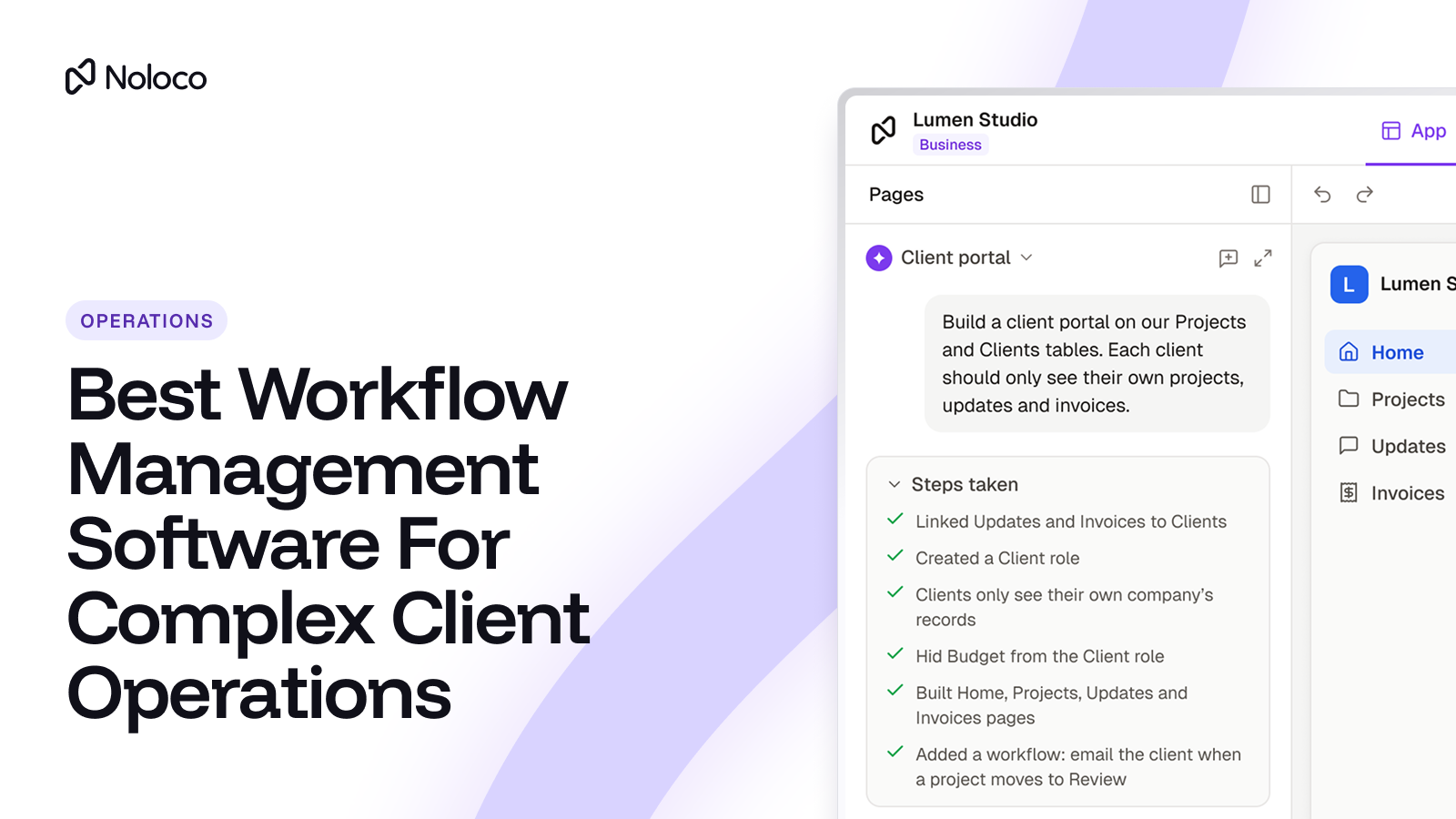
An accounting firm takes on three kinds of new clients. A sole trader needs four onboarding steps. A company with payroll needs eleven, including a signed authority form and a call with the payroll lead. A company with an overseas entity needs all eleven, plus an outside tax specialist who should only ever see that one client's file.
The firm's project tool has one onboarding template. So the operations manager copies it, deletes steps, adds steps, and keeps a spreadsheet on the side to remember which client is waiting on what. She also has to check emails, chase missing documents, and make sure the right people can see the right information. When she's on holiday, onboarding slows down.
That's the point where most service businesses start searching for custom workflow management software. The template isn't broken. The work just has more versions than the template does. And when the person holding the process together is the only one who knows how everything fits, the whole operation depends on them.
TL;DR
- Custom workflow management software lets you set up your own steps, rules, and approvals, instead of fitting your work into someone else's template.
- Template-based project tools (monday.com, ClickUp) are quick to start and work well when every job follows roughly the same steps.
- Checklist and process tools (Process Street, Kissflow) are good for repeatable steps with approvals. Client and partner access may be limited or available only on higher plans.
- Automation tools (Zapier) move data between the apps you already use. They don't give clients a place to log in and do their part.
- Airtable gives you a flexible database you shape yourself, with paid Portals for outside users.
- AI portal builders like Noloco help you build a system around your actual process, so your team, clients, and partners can work in one place, with an AI builder.
What is custom workflow management software?
Custom workflow management software is a tool where you decide the steps, who does each one, what has to happen before the next step starts, and what each person can see. The alternative is a template-based tool, where the steps come pre-built and you adjust around the edges.
For a service business, "custom" usually means three things:
- Different paths for different clients. A small client skips the compliance check. A regulated client gets two extra approvals.
- Work shared with people outside your company. The client uploads documents, a subcontractor confirms a site visit, or an outside specialist signs off.
- Clear rules about who sees what. The client sees their own progress. They don't see your internal notes, your fees for other clients, or other clients' records.
Workflow automation is part of this, but not all of it. Automation handles the "when this happens, do that" moments, like sending a reminder when a document is overdue. Workflow management is the whole process those moments sit inside.
The important distinction is that a workflow tool can organise the work without giving everyone involved a shared place to do it. When clients, contractors, and your own team all need to take action, you may need more than a list of tasks. You need a system built around the whole process.
Why do template-based tools struggle with complex client workflows?
Templates assume every job follows the same path. Many service businesses run on exceptions: the client who needs an extra review, the job that's paused waiting on a permit, or the project where a partner firm handles one phase.
When the tool can't handle those exceptions, people have to. They keep side spreadsheets, send "just checking" emails, and copy the same client details from one tool into another. In Ricoh Europe research of 6,000 office workers across six European countries, reported by IT Brief in January 2026, workers said they spend about 15 hours a week on admin tasks. 35% said they regularly re-enter the same information in more than one system.
The other pressure point is clients. Most template-based tools were built for internal teams first. Clients can be invited as guests, but access is often set board by board or task by task. That can mean creating separate boards, duplicating pages, or checking permissions every time a new client joins. Hiding one field from one client while showing it to another may not be possible.
This is where a tool that once saved time can start creating more work. The team spends time managing the system instead of moving the process forward.
Key takeaways
- If your team keeps a spreadsheet next to the workflow tool, important parts of the process are still being managed outside the system.
- Exceptions are where templates break, and exceptions are where service businesses spend their time.
- When clients and partners need access, check whether you can control what each person sees without building a separate setup for everyone.
- The aim isn't to automate every task. It's to give the people doing the work one reliable place to complete it.
What are the best custom workflow management software options?
The tools below fall into four groups: template-based project tools, checklist and process tools, automation tools, and builders. The table gives a quick view, and each tool gets a short write-up after it.
The right choice depends on where your process breaks down. If your team mainly needs to organise internal tasks, a project tool may be enough. If the problem is client access, changing workflows, and too many disconnected tools, look closely at how each option handles those needs.
Noloco
Noloco is an AI portal builder for businesses running complex operations that don't fit a standard template. It helps you build a system around the way your team works, so your staff, clients, and partners can use the same system without everyone seeing the same information.
You describe what you need to Nola, Noloco's AI builder, and it helps build your portal on your existing data — including Airtable, Google Sheets, or Noloco Tables. You don't have to start from a blank page or hand the whole job to a developer.
That matters when your process has several versions. You might need one onboarding path for a small client, another for a larger account, and a third that brings in an outside specialist. Noloco lets you shape the screens, steps, and permissions around those differences.
Nola, Noloco's AI builder helps you build the system. Noloco workflows can run when a record changes, when someone clicks a button, or when data meets a condition you set. They can send emails and approval requests, connect to other apps through webhooks, and run AI steps like summarising a client's uploaded notes.
The key difference is that Noloco isn't just a way to generate an app that looks right. It's built to run real business processes, with logins, permissions, and controls for working with clients and partners. You can give each person access to the records they need, without exposing everyone else's information.
You can also start with one portal and expand it as your needs change, bringing more of your delivery work, client collaboration, and internal processes into the same system.
If only your internal team uses the process and everyone follows the same steps, a project tool will probably be simpler. Noloco makes more sense when the process changes by client, outside people need to take action, or your existing tools can no longer handle permissions and handoffs cleanly.
Best for: businesses with complex, client-facing workflows that need a flexible system their team can safely run without relying on a developer.
monday.com
monday.com is a work management tool built around boards, with templates for most kinds of work and built-in automations like "when status changes to Done, notify the account lead." It's easy for a team to pick up in a day.
For outside people, monday.com offers viewers and guests. Guests are available on the Standard plan and above and are limited to shareable boards. That works for one board per client. It gets harder when you want one shared process where each client sees only their own rows.
If your main problem is keeping internal tasks and deadlines organised, monday.com is a sensible place to start. But if every client has a different process, or you need detailed control over which records each client can access, check how much manual setup that will involve.
Best for: teams whose jobs follow a similar path and who mainly need the internal team organised.
ClickUp
ClickUp covers tasks, docs, time tracking, and chat in one place, with a lot of settings to shape how each list works. Custom fields and statuses let you get close to your real process.
Clients join as guests, invited to individual items or locations. On paid plans, view-only guests are free, while guests who can edit are charged at the member rate. You can hide custom fields from all guests in the workspace, but not from one client and not another.
ClickUp gives internal teams plenty of ways to organize their work. The question is whether those settings can handle your client-facing process without extra workarounds. If different clients need different information, test those permissions before committing.
Best for: internal teams that want one tool for tasks and docs and are comfortable spending time on setup.
Process Street
Process Street turns your process into a checklist that runs the same way every time, with conditional logic, approvals, and forms. It's a strong fit for onboarding steps that must not be skipped.
Outside people can join as external guests and see only the runs and tasks assigned to them. Guests count as seats on your subscription, and they can only be assigned after a workflow has started.
Process Street is worth considering when consistency matters more than flexibility — for example, when every new account must pass through a defined set of compliance checks. If the process changes significantly from one client to the next, check how easily your team can adapt it.
Best for: repeatable, compliance-heavy steps where the main risk is someone skipping one.
Kissflow
Kissflow is a low-code tool for building process apps: forms, approval chains, and boards. It's often chosen by finance and HR teams that need purchase requests or leave approvals to follow a set path.
For external users, Kissflow has Portals. According to Kissflow's help docs, each portal supports up to 10 external users so you can test it, and a full portal with real users needs a conversation with their team about pricing.
Kissflow suits businesses that want to formalise approval processes. If clients or contractors are a regular part of your workflow, confirm the cost and limits of giving them access before you decide.
Best for: internal approval processes where most people involved are employees.
Zapier
Zapier connects the apps you already use. A signed proposal in one tool can create a project in another and post a message to your team. For many service businesses, it's the glue that keeps several tools in step.
Zapier counts each action step as a task, so busy workflows use up tasks quickly, and branching with paths or filters needs the Professional plan or above. It moves data between tools, but it doesn't give clients one place to log in, see their progress, and do their part.
Zapier is useful when you want your existing tools to pass information between one another. But connecting five apps doesn't automatically give you one place to run the business. Your team may still have to switch between systems, and clients still need somewhere to complete their part of the process.
Best for: connecting tools you're keeping and handling the "when this happens, do that" moments between them.
Airtable
Airtable is a flexible database that feels like a spreadsheet. You can model almost any process with linked tables, then build interfaces and automations on top. Many operations teams already run their client lists, jobs, and deadlines in it.
For outside users, Airtable offers Portals, a paid add-on on Team, Business, and Enterprise Scale plans, sold in packs of seats, with one portal per base. If you're already on Airtable and want a portal around it, our guide to Airtable client portal permissions covers the trade-offs in more detail.
Airtable is a good starting point when you need to organize data in a way that matches your business. The pressure often starts later: when more people need access, different clients must see different records, or the team spends too much time maintaining interfaces and workarounds.
You may not need to replace Airtable to solve that problem. A portal builder can give your team and clients a more controlled way to work with the data you already have.
Best for: teams that want to design their own data structure and mostly work internally, or need a flexible base for a client-facing system.
How do these tools compare on custom client processes?
The table compares the tools on the questions that matter most once clients and partners are part of the process. A ⚠️ means it's possible but limited, depends on the plan, or takes extra setup.
Most tools on this list handle the internal side well. The differences show up when the person doing step six works for your client, not for you.
When you compare tools, don't just ask whether they support workflows or external users. Ask whether you can run different versions of the same process, control access for each person, and change the setup without creating more admin.
Key takeaways
- Branching steps by client type is now common, though some tools need a higher plan for it.
- Check whether clients can see only their own records, rather than simply whether you can invite them as guests.
- Compare the full cost of giving clients, partners, and contractors access. Per-user charges can add up when dozens or hundreds of people need to log in.
- Find out whether you can change the process yourself, without rebuilding the system every time the business changes.
How do you choose flexible workflow software for non-standard workflows?
Before any demo, take one real client process and write it down step by step. Pick your messiest one, not your cleanest. Then answer five questions about it.
- How many versions of this process do you actually run? If the answer is one or two, a template-based tool will likely do. If it's five, and they change every quarter, you need something you can reshape without rebuilding.
- Who outside your company does a step? List every client, subcontractor, and outside specialist who uploads, approves, or confirms something.
- What must each of them never see? Other clients, your margins, internal notes, another subcontractor's rates. Write it down. Use this list to test the permissions in every tool you consider.
- Where does the data live today? If it's in Airtable or Google Sheets and works, look for a tool that can sit on top of it rather than replace it.
- Who will change the process next time? If it's the operations manager, not a developer, she needs to be able to add a step in an afternoon.
Also ask who will own the system once it's live. The goal is to get the process out of one person's head and into a system the rest of the team can understand, use, and change safely.
Example: a solar installer runs a process that starts with the sale and ends when the system is switched on. Residential jobs need a permit and one install crew. Commercial jobs need a structural survey, two crews, and a sign-off from the building owner. The installer's test is simple: can a crew log in, see only their assigned jobs, upload site photos, and have the next step start without anyone sending an email?
If the answer is yes, the system is doing more than storing tasks. It's helping the people involved move the job forward, while keeping the right information in the right hands.
If your process mostly stays internal, our guide to workflow automation for small businesses covers the simpler setups.
When should a service business choose an AI portal builder over a workflow tool?
A workflow tool organises your team's work. An AI portal builder helps you build a system where your team, clients, and partners can all work, with access rules set for each of them. Our glossary explains what an AI portal builder is in more detail.
The difference isn't simply how much you can customise. It's whether the system can handle the real process, including the people outside your company who need to take part.
A workflow tool is usually enough when:
- Clients only need updates by email, not their own login.
- Most jobs follow the same steps.
- Your team is happy to keep data in the workflow tool itself.
- Your current setup doesn't create permission problems or force people to maintain side spreadsheets.
An AI portal builder fits better when:
- Clients and partners need to log in and do part of the work, like uploading documents or approving a quote.
- Each client must see only their own jobs, files, and invoices.
- The process has different paths for different client types.
- Your data already lives in Airtable, Google Sheets, or a database, and you want to keep it there.
- You're spending too much time joining up spreadsheets, chasing people for updates, or explaining how a process works to the next person who needs to run it.
- You want to use AI to build a system faster, but need dependable permissions and controls before real clients start using it.
One practical rule: if no clients, partners, or contractors need to take part in the workflow, you may not need a portal. If they do, start by looking at how the tool handles their access, their tasks, and their data.
How does Noloco handle custom client workflows?
Noloco helps you build a system around the way your operations work, rather than forcing your team to adapt to a generic template. Here's what that looks like for the accounting firm from the start of this article.
The firm keeps its client list in Airtable. With the Airtable connection, Noloco uses that base directly, so nothing gets migrated. The operations manager describes the onboarding process to Nola, Noloco's AI builder, which helps her build the portal for staff, clients, and the outside tax specialist.
Each client type gets its own path. When a new client is marked "company with payroll," a workflow adds the payroll steps and emails the client a request for the signed authority form. The client logs in, uploads it through a form, and the next step starts.
With role permissions, the client sees only their own checklist, and the tax specialist sees only the clients assigned to them.
The result is a process that doesn't depend on the operations manager remembering every exception. The system holds the steps and access rules, so the team can keep work moving even when she's busy or away.
And the firm doesn't have to stop at onboarding. As its needs change, it can build out more of the work its team and clients handle, keeping the information and processes connected instead of adding another disconnected tool.
GAP Consulting, a consultancy, used Noloco to run billing as a workflow instead of a monthly scramble. Moving to bi-weekly automated billing doubled their cash flow and increased billable hours by 50%. Enpal, Germany's largest solar and heat pump company, runs a portal for about 100 field sales reps on top of Airtable, where each rep sees only their own customers.
These examples show two different ways to tackle operational problems: make a recurring process less manual, or give a team and its external users a shared place to work with the right access.
If you're comparing this with Airtable's own interfaces, see Noloco vs Airtable Interfaces. The Free plan includes 50 active clients, and the Build plan includes 1,000 active clients and your own domain, such as portal.yourcompany.com. Current details are on the pricing page.
See your onboarding process running in one portal. Book a demo and bring your messiest client process. We'll show you how to build different paths for different client types, give each person access to the right information, and keep the work moving without relying on spreadsheets and email reminders.
Final thoughts
The best custom workflow management software for a service business is the one that holds your exceptions, so your operations manager doesn't have to. If your jobs mostly follow one path and stay internal, a template-based tool is quick and fine. If the process changes by client, and clients and partners do steps of their own, look for a tool where access rules and workflows are built in together.
The bigger question is whether your system can keep up as the business grows. Can your team change a process without rebuilding everything? Can you bring in clients and partners without losing control of their access? Can someone other than the person who built the setup run it confidently?
Start with your messiest process, write down who must never see what, and test every tool against that list. You don't need to replace everything at once. Start with the process causing the most admin, build a system that works for everyone involved, and expand from there. If your data is on Airtable, here's a step-by-step guide on how to migrate without having to move everything at once.
When you're ready to see it working on your own data, book a Noloco demo. Or get started by yourself...it's that easy!
Frequently asked questions
What is the difference between workflow management and workflow automation?
Workflow management covers the whole process: the steps, who does each one, and what each person can see. Workflow automation is the part that runs on its own, like sending a reminder when a document is late or creating a task when a quote is approved.
Can clients complete steps in a workflow tool without seeing other clients' work?
In some tools, yes. Check whether access is set per record (each client sees only their rows) or per board or project (you set up a separate space for every client). Per-record access is easier to manage once you have more than a handful of clients. Test it with realistic examples, including records with sensitive information, before giving clients access.
Do I need a developer to set up custom workflow software?
Usually not for the setup. Most tools in this category are built for operations teams. Plan time for someone who knows the process well to write down the steps and access rules, and to test them before clients log in. With an AI portal builder like Noloco, Nola can help you build the system from a description of what you need. Your team still needs to check that the process and permissions work as intended.
Can I keep my data in Airtable or Google Sheets and still use a workflow tool?
Yes. Automation tools can move data in and out, and some builders work directly on top of an Airtable base or Google Sheet, so you don't need to migrate. If your data already works well in Airtable or Google Sheets, check whether you can build the portal around it instead of moving everything into a new system.
How do I know if my workflow is too complex for a template?
A good sign is a side spreadsheet. If your team tracks exceptions, waiting steps, or client-specific rules outside the main tool, the template isn't holding your real process. Another sign is that only one person knows which steps apply to each client, or that giving a new client access means manually rebuilding parts of the setup.
How are external users usually priced in workflow software?
It varies a lot. Some tools count each guest as a paid seat, some offer free view-only guests, and some sell external access as an add-on or on top plans only. Check this early if you expect dozens or hundreds of clients to log in. Also compare how pricing changes as your client list grows. A portal can become expensive if every external user adds another full seat to your bill.
What is the difference between an AI portal builder and a vibe-coding tool?
Vibe-coding tools can help you create a working app or prototype with AI. But if that app will handle real client logins, private records, and changing business processes, you also need dependable access controls and a system you can maintain as the business changes. An AI portal builder like Noloco combines AI-assisted building with built-in logins, permissions, and workflow tools, so you can build around your real operations without relying on a custom codebase to manage everything.
When should I choose Noloco over Airtable Interfaces?
Consider Noloco when you need a branded portal for clients and partners, more control over who sees which records, or a system that brings internal and external work together. If you're already using Airtable, you can keep your data there and build the portal around it. Compare the current plans and permissions against your actual use case before deciding.
Related resources
Author



Our recent posts
Explore all blog posts
Your most common
questions—answered!
Who is Noloco best suited to?
+
-
Noloco is perfect for small to medium-sized service businesses like consultancies, agencies, advisory firms, as well as engineering and industrial services such as energy, construction, or any other operations-focused fields.
Do I need tech experience to use the platform?
+
-
Not at all! Noloco is designed especially for non-tech teams. Simply build your custom system using a drag-and-drop interface. No developers needed!
Is my data secure?
+
-
Absolutely! Security is very important to us. Our access control features let you limit who can see certain data, so only the right people can access sensitive information
Do you offer customer support?
+
-
Yes! We provide customer support through various channels—like chat, email, and help articles—to assist you in any way we can.
My business is growing fast—can Noloco keep up?
+
-
Definitely! Noloco makes it easy to tweak your system as your business grows, adapting to your changing workflows and needs.
Is there any training or support available to help my team get up to speed?
+
-
Yes! We offer tutorials, guides, and AI assistance to help you and your team learn how to use Noloco quickly.
Can I make changes to my app after it’s been created?
+
-
Of course! You can adjust your app whenever needed. Add new features, redesign the layout, or make any other changes you need—you’re in full control.
Ready to boost
your business?
Build your custom tool with Noloco